
The backup almost killed the migration.
I thought moving a WordPress site to a new host would take an hour. Instead, I spent an entire evening fighting a 460MB backup file, a full disk quota, three failed FTP attempts, a PHP upload limit, broken JavaScript, and a lazy-loading plugin that intercepted dynamically-set image attributes.
The strange part? AI caused some of the wrong turns — and helped me get out of almost all of them.
Here’s what happened.
Why I Was Migrating at All
My site had been on a budget shared host for years. Cheap, functional, increasingly frustrating. When the renewal came up, I asked Claude to run the numbers on switching to Hostinger. The math came out clearly in favour of moving — better specs, lower annual cost over a 24-month plan, and infrastructure that would actually hold up if traffic grew.
So I decided to migrate. With AI as my technical advisor. What could go wrong?
The Accident Report (What Actually Happened)
Before I get into the how-to, here’s the honest version of events — because the failures are the useful part:
| Tool | Why I Needed It | What Actually Happened |
|---|---|---|
| Hostinger | New hosting platform | Fast upload, clean hPanel, one-click SSL — the smooth part of this whole story |
| All-in-One WP Migration | Export full site backup | Created a 460MB file that maxed out the old server’s disk quota, blocking all future exports |
| Hostinger hPanel (PHP settings) | Configure server limits | Default 64MB upload limit silently rejected my 148MB backup; needed manual fix |
| LiteSpeed Cache | Performance (pre-installed) | Intercepted a dynamically-set image src, breaking the QR code display post-migration |
| Claude AI | Technical advisor throughout | Diagnosed most failures correctly, but couldn’t predict environment-specific limits in advance |
Step 1: Make a Backup (This Is Where It Went Wrong)
Standard advice: back up your site before migrating. I installed All-in-One WP Migration and ran a full export. The plugin is free, installs in two minutes, and wraps your entire WordPress installation — database, plugins, themes, media — into a single .wpress file.
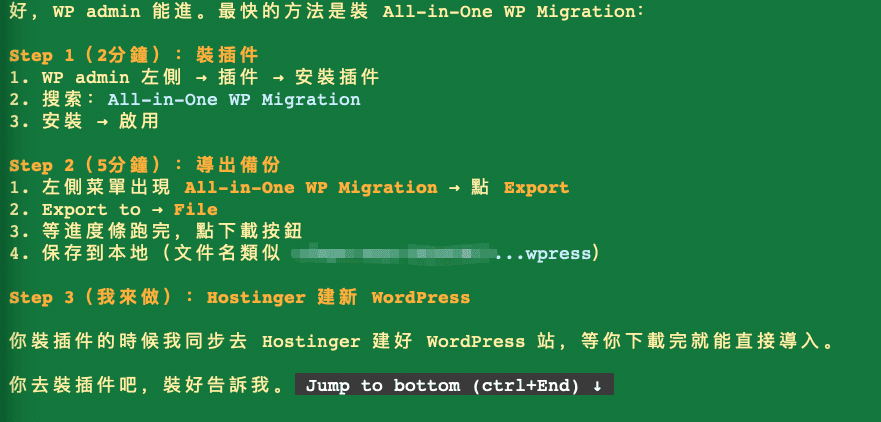
The export completed. 460MB. Great.
Then I tried to download it.
Pitfall #1: 4 Hours to Download from a Cheap Host
The browser showed an estimated four hours remaining for a 439MB file. This is the moment I understood exactly what I’d been paying for.
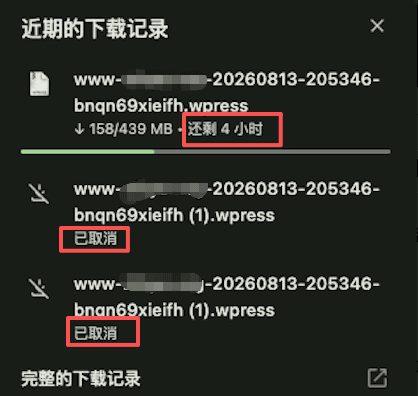
I cancelled. The AI suggested FTP. The host’s passive mode had data port restrictions that blocked external connections. We tried three different approaches. All failed.
Pitfall #2: The Disk Quota Catch-22 (The Real Problem)
This is the part of the story I think is actually worth reading, because you won’t find it in any migration tutorial.
After the download failed, I tried creating a second backup — smaller this time, without the media library. It failed. Third attempt. Also failed. The terminal finally showed what was actually happening:
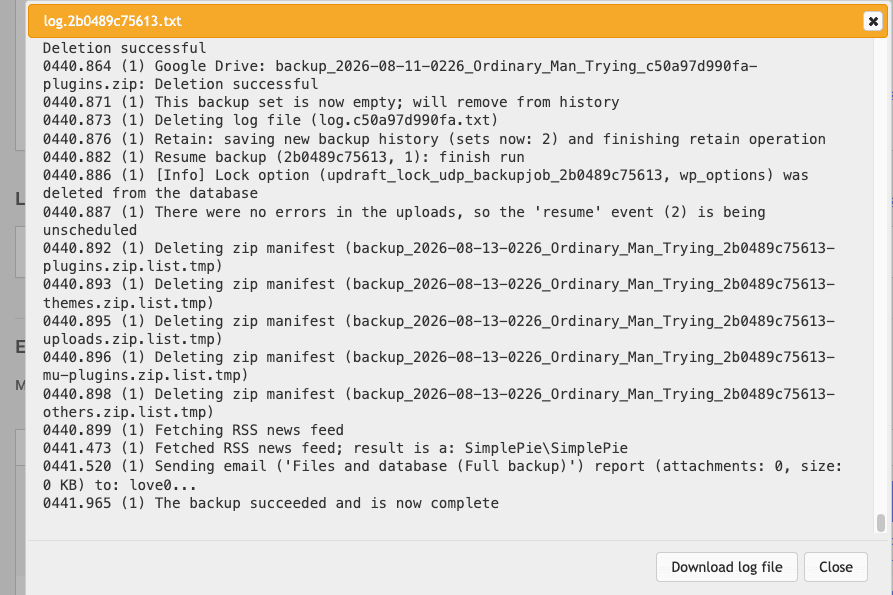
errno=122 Disk quota Exceeded — the first 460MB backup had consumed the entire available disk space on the server.The 460MB backup had silently maxed out my hosting account’s disk quota. No more writes were possible — not to a log file, not to a new export, not to anything.
And here was the catch-22: to free up disk space, I needed to delete the backup. But deleting it meant losing the only full copy of my site. If something went wrong mid-migration with no backup, I’d have nothing to roll back to.
Standard migration tutorials tell you: back up your website.
What they don’t tell you: the backup itself can fill your server and make everything worse.
The fix, once the AI diagnosed it: delete the large backup to free space, then immediately re-export a smaller version without media files. The new file came in at 148MB — manageable, and fast enough to actually download.
Lesson: Before running a full WordPress backup export, check your disk usage in your host’s control panel. If you’re above 60-70% full, the backup file itself may push you over the limit.
Pitfall #3: PHP Upload Limit (The Hidden Wall)
I installed All-in-One WP Migration on the new Hostinger site and tried to import the 148MB file. Failed immediately: “Upload failed — connection lost or timeout.”
The default PHP upload_max_filesize on most WordPress installations is 64MB. My file was 148MB. The fix is straightforward once you know where to look — in Hostinger’s hPanel under PHP settings:
upload_max_filesize = 256M
post_max_size = 256M
max_execution_time = 300
memory_limit = 256M
Path: hPanel → Websites → your domain → PHP → PHP Options → update the four values → Save.
After that, the upload actually moved. And Hostinger’s upload speed made the old host look embarrassing:
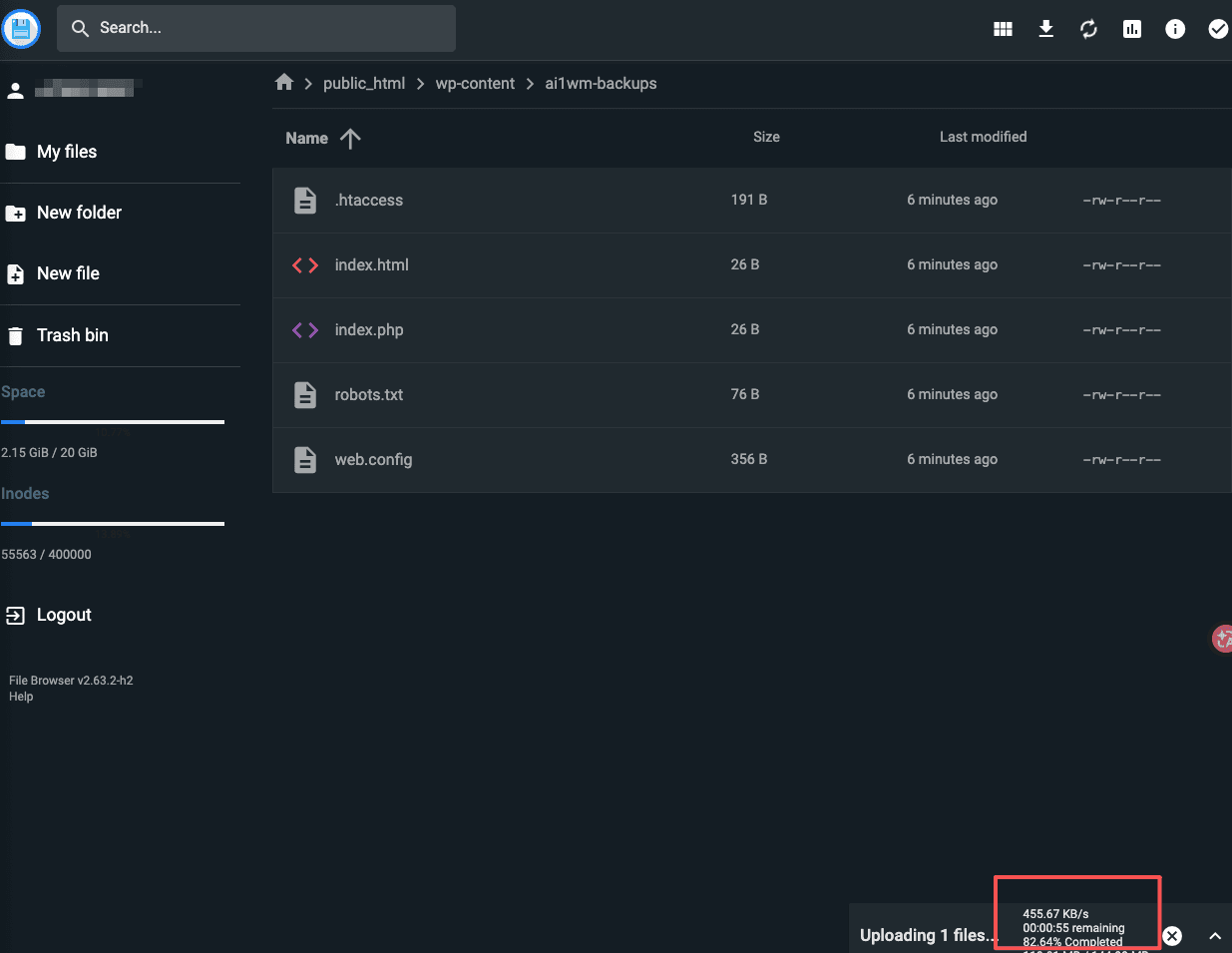
The Migration Options and Import Process
Hostinger’s migration wizard offers two paths when setting up WordPress:
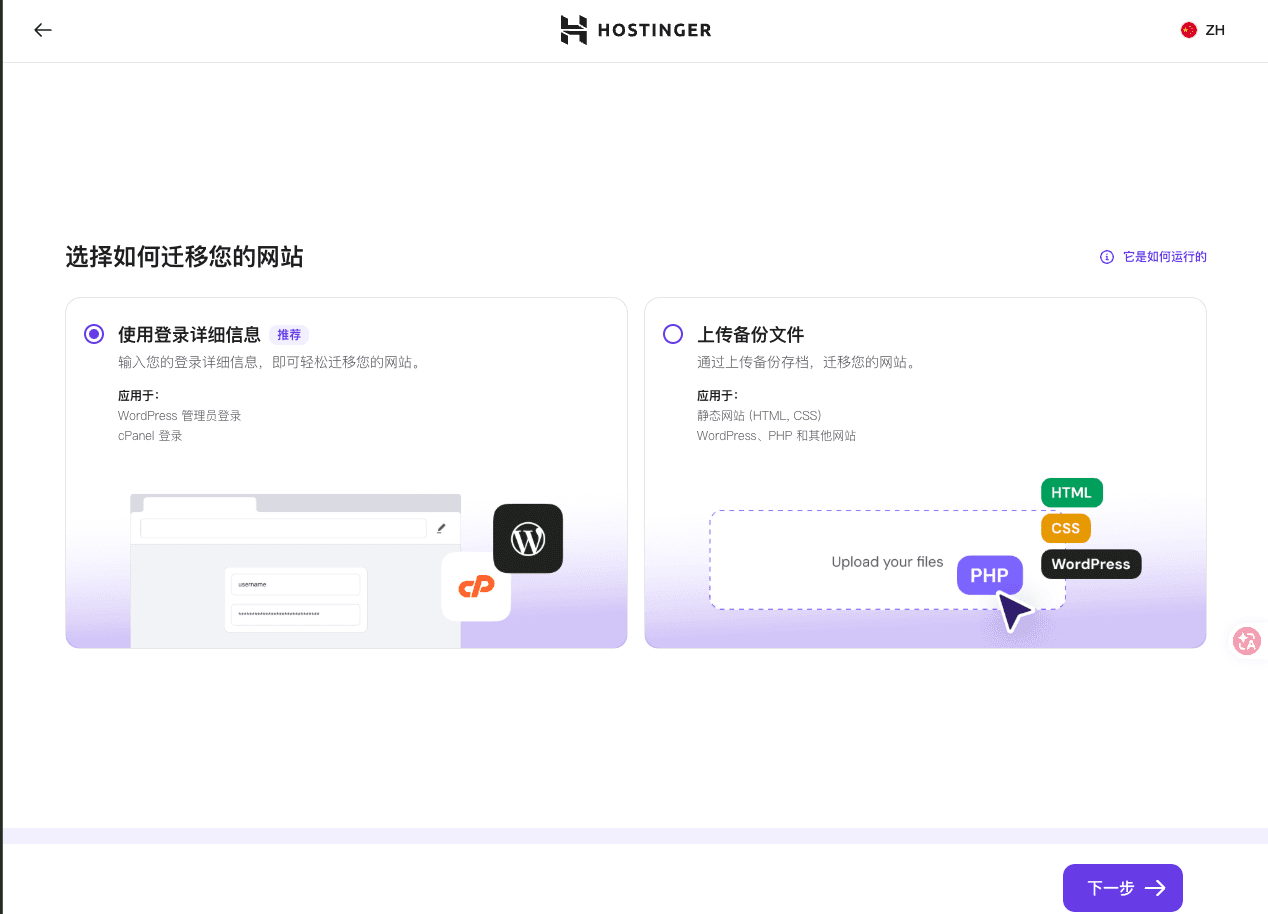
During import, All-in-One WP Migration asks for your destination URL. Enter it exactly as it appears on your old site — including https://www if that’s what you used — and the plugin handles all database URL replacements automatically.
DNS and SSL
After import: update your DNS A record to point to Hostinger’s IP. While waiting for propagation, install SSL — one click in hPanel, free Lifetime SSL, covers both root domain and www:
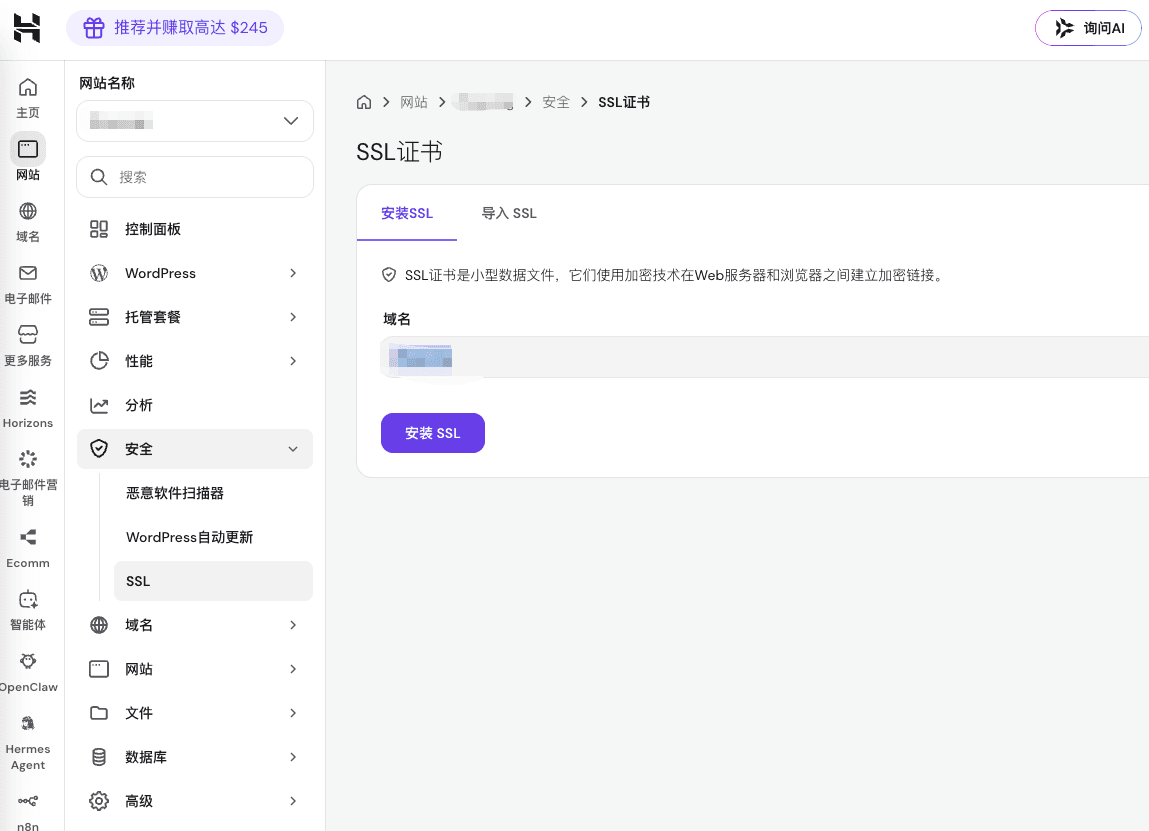
Within 30 minutes of changing DNS, the site was live on Hostinger:
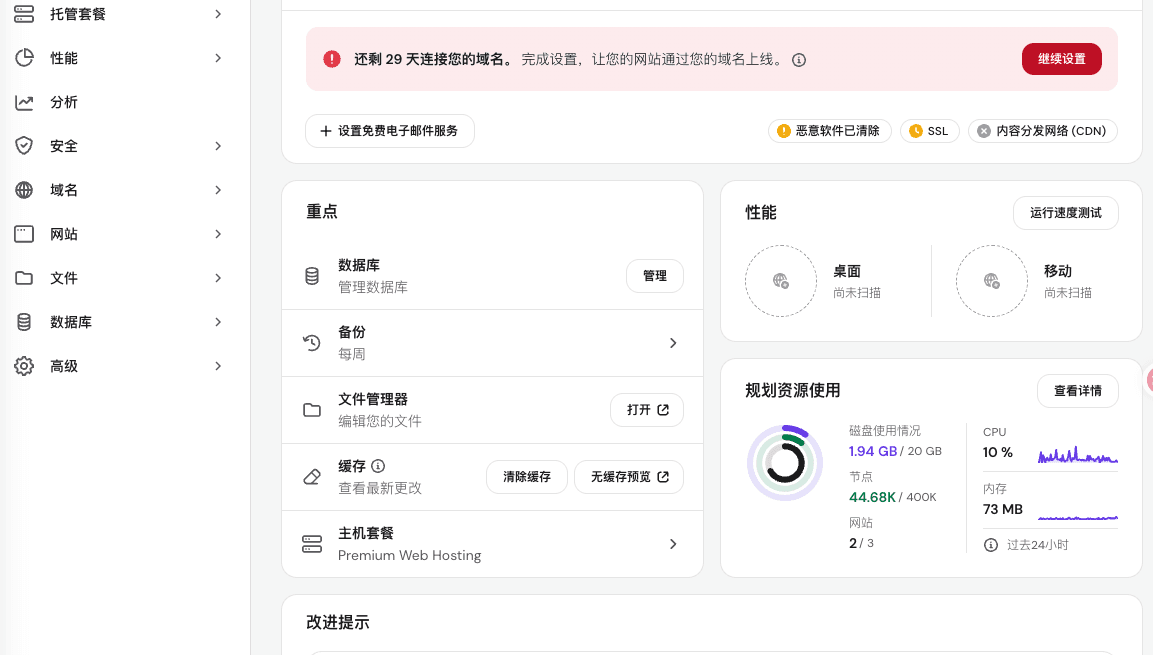
Post-Migration Bugs the AI Helped Diagnose
Getting the site live wasn’t the end. Three things needed fixing that I’d never have diagnosed on my own:
- Homepage showing QR codes as post thumbnails — posts had no featured images set, so the theme extracted the first image from post content. The AI wrote a small plugin to display a default thumbnail instead.
- WordPress encoding breaking JavaScript — WP’s content filter was converting
&to&inside a JS block, silently breaking a URL parameter. The fix: useString.fromCharCode(38)to generate the ampersand at runtime. - LiteSpeed lazy-load intercepting a dynamic image — the cache plugin was interfering with a dynamically-set
img.srcattribute. Fixed by usingcreateElement()to build a fresh image element instead of modifying the existing one.
What This Experience Actually Taught Me About AI
The honest version isn’t “AI migrated my WordPress site.” It’s closer to this:
AI was good at:
- Giving the next step when I was stuck
- Reading error messages and identifying root causes
- Explaining unfamiliar technical concepts in plain language
- Writing quick scripts and code fixes on the spot
- Verifying whether a proposed fix actually made sense
AI was not good at:
- Knowing my server’s actual disk quota in advance
- Predicting environment-specific limitations before we hit them
- Guaranteeing the first approach would work
- Taking any of the actual risk
The most accurate framing I can offer: AI is a troubleshooting partner, not an autopilot. It significantly raised my ability to navigate problems I had no business solving on my own. But it didn’t make the problems disappear — it just meant I wasn’t facing them alone.
My Honest Take on Hostinger (After Less Than 24 Hours)
So far — and I want to be clear this is early — the new hosting environment feels noticeably better. The upload speed, the hPanel layout, the one-click SSL, the automated weekly backups: all of these are meaningful improvements over what I had.
But it’s far too early to make any real verdict. I’ve been on Hostinger for less than a day. I’ll update this post after I’ve actually lived with it for a few months and can speak to uptime, support quality, and whether the speed difference holds under real traffic.
If you’re considering making the switch yourself, here’s my referral link — same price for you, small commission for me, full disclosure: 👉 Hostinger Web Hosting
Quick Checklist: WordPress Migration to Hostinger
- Check disk usage on old host — stay below 60% before exporting
- Install All-in-One WP Migration → export without media if file is large
- Sign up for Hostinger → install fresh WordPress
- hPanel → PHP settings → set all upload limits to 256M
- Upload backup via hPanel file manager → restore via plugin
- Update DNS → wait for propagation → install SSL
- Test every plugin and any custom JS or caching behaviour
How much of this article was written by AI? AI helped me diagnose the problems, research solutions, and structure this write-up. The migration itself, every mistake, every screenshot, and every final decision were mine. The failures are real. The fixes are real. The embarrassment is entirely real.
📋 The Exact Steps That Worked (Copy This)
These are the actual steps from this migration, in order. Skip none of them.
Phase 1 — Before You Touch Anything
- Log into your old hosting control panel → check disk usage. If it’s more than half full, clean up or upgrade before proceeding. The backup file will be large.
- Install All-in-One WP Migration on your old WordPress site (free, search in WP plugins).
- Go to All-in-One WP Migration → Export → Export To → File. If your site is large, uncheck “Media Library” to keep the file under 200MB.
- Download the .wpress file to your computer. If the download is slow (more than 30 min estimated), stop — your old host has poor I/O and you need another approach.
- If the export fails: your disk is probably full. Go to All-in-One WP Migration → Backups → delete the existing backup → try the export again without media.
Phase 2 — Set Up Hostinger
- Sign up for Hostinger → choose a plan → add your domain.
- hPanel → Websites → your domain → WordPress → Install WordPress. Use the same language and admin username as your old site if possible.
- Before importing: hPanel → Websites → your domain → PHP → PHP Options → set these four values:
upload_max_filesize = 256Mpost_max_size = 256Mmax_execution_time = 300memory_limit = 256M
Phase 3 — Import
- Install All-in-One WP Migration on your new Hostinger WordPress site.
- Go to All-in-One WP Migration → Import → upload your .wpress file. If it times out via browser: use hPanel File Manager to upload the file directly to
public_html/wp-content/ai1wm-backups/, then go to All-in-One WP Migration → Backups → Restore. - When the import asks for your destination URL, enter it exactly as it appeared on your old site — including
https://wwwif you used www. The plugin replaces all URLs in the database automatically. - Log back into your new WP admin (your old username/password are now restored).
Phase 4 — Go Live
- Update your DNS: set the A record to Hostinger’s server IP (shown in hPanel → Domains). Wait 30–60 minutes for propagation.
- hPanel → Security → SSL → Install SSL. Do this after DNS has propagated, not before — otherwise the certificate won’t cover your domain correctly.
- Visit your site on both
https://yourdomain.comandhttps://www.yourdomain.com. Confirm SSL shows a padlock on both.
Phase 5 — Test Everything
- Go through every plugin and turn them on one by one. Some may conflict with LiteSpeed Cache (which Hostinger installs by default).
- Check any page that uses custom JavaScript — WordPress can re-encode special characters like
&inside script blocks, silently breaking URL parameters. - If images aren’t loading: LiteSpeed’s lazy-load may be intercepting dynamically-set image
srcattributes. Addclass="no-lazy"to affected images, or disable lazy-load temporarily to isolate the issue. - Check your old hosting plan’s renewal date. Once you’ve confirmed everything works on Hostinger, let the old plan expire. Don’t pay for two hosts.
Leave a Reply